How to Create Multi-Speaker AI Dialogues & Podcasts from a Script
Whether you are producing a two-host podcast intro, a language-learning conversation, or an animated character scene, here is how to direct multi-speaker AI dialogue that actually sounds like real people talking.
Key Takeaways
- Play HT Multi-Speaker Text to Speech lets signed-in users assign 2 to 4 distinct speakers across up to 20 dialogue lines.
- Only new or edited lines spend credits — reordering lines, renaming speakers, replaying clips, and combining finished audio into one MP3 are completely free.
- Use 16 delivery expressions (including warm, curious, excited, calm, whispered, plus laughter and sighs) to give each speaker a distinct rhythm.
- Play the prerecorded English dialogue demo on /multi-speaker-text-to-speech for free before creating your own script.
Why single-voice TTS breaks down for scripts and podcasts
If you have ever tried building a podcast conversation or roleplay training scenario by generating separate audio clips one by one and stitching them in a DAW, you know how tedious it gets. Every time a client tweaks one line of dialogue, you have to re-export, re-import, re-align gaps, and bounce the entire timeline again.
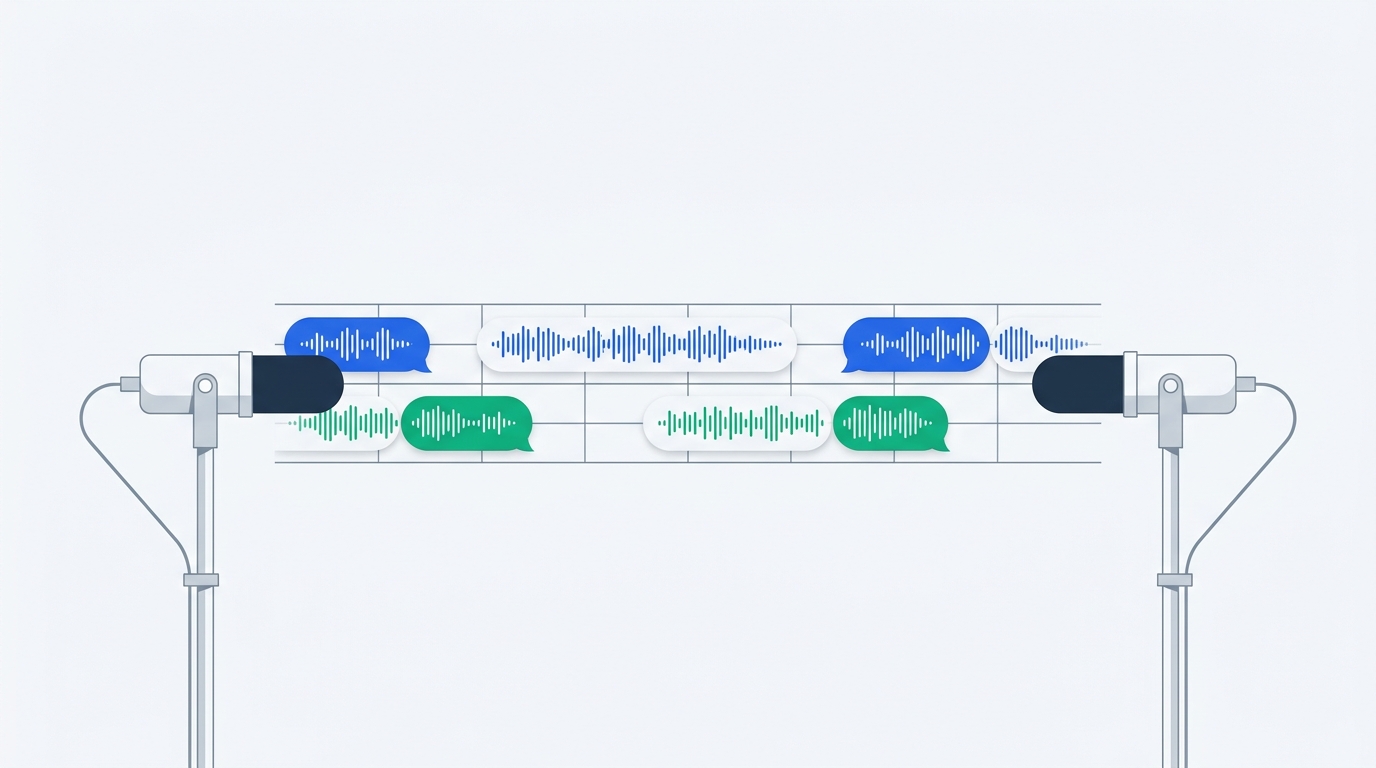
A dedicated multi-speaker dialogue editor solves this by treating each line as an independent, voice-assigned block. In Play HT, you can cast 2 to 4 contrasting voices (including eligible private cloned voices), edit one line in seconds, and click Combine to export a seamless single MP3.
How to cast 2–4 voices so listeners never confuse speakers
Great audio drama and podcasts rely on vocal contrast. If two hosts share the same pitch range, pace, and accent, listeners on earbuds or car speakers will lose track of who is speaking within 30 seconds.
- Contrast pitch and timber: pair a warm lower-register host with a brighter, crisp co-host.
- Differentiate speaking style: assign "Calm" or "Confident" to the anchor/interviewer and "Curious" or "Excited" to the guest.
- Use natural vocal reactions sparingly: inserting a brief laugh or sigh on a punchline immediately breaks the monotony of synthetic narration.
- Keep turns punchy: conversational scripts sound far more realistic when turns are 1–3 sentences rather than 200-word monologues.
Try the Multi-Speaker Dialogue Editor
Listen to our prerecorded English dialogue demo for free, then cast up to 4 speakers for your own script.
How line-by-line generation saves credits on revisions
In Play HT Multi-Speaker Text to Speech, each line is generated and cached individually. You can enter up to 500 characters without an active subscription or up to 2,000 characters with a subscription (including expression tags).
Because completed lines stay saved, rearranging the order of lines, renaming speaker labels, replaying takes, and merging the final dialogue MP3 cost zero extra credits. Only newly added or edited lines use generation credits at your chosen model rate.
| Action in Dialogue Editor | Spends Credits? |
|---|---|
| Listening to the built-in English dialogue example | Free (0 credits) |
| Generating a new or edited dialogue line | Yes — standard Basic / Pro / Max rate per line |
| Reordering lines or renaming speakers | Free (0 credits) |
| Replaying saved lines & combining into a single MP3 | Free (0 credits) |
Frequently Asked Questions
How many speakers can I add to one dialogue in Play HT?
You can assign between 2 and 4 speakers across up to 20 dialogue lines per project, and export all completed lines combined into a single MP3.
Can I use my cloned voice inside a multi-speaker podcast script?
Yes. Active subscribers and eligible trial users can combine their saved private cloned voices with any public voices in the Multi-Speaker Dialogue editor.
Do expression tags like laughter or whispered tone count toward character limits?
Yes, expression tags count as input characters. Always preview a single line first because vocal reactions can vary subtly by voice.