
New line
MULTIPLE VOICES. YOUR WORDS.
Multi-Speaker Text to Speech
Turn your script into a conversation with multi-speaker text to speech. Choose 2–4 voices, direct each line, and download one MP3. You write the words; Play HT voices them.
Create your dialogue
Sign in to generate · Credits shown before generation
Speakers
2 / 4Changing a voice updates only that speaker’s lines.
Script
Choose a speaker. Write a line. Set the delivery.
Your dialogue
Finish every line to play and download the complete MP3.
Multi-speaker text to speech, from script to MP3
Use multi-speaker text to speech when one narrator cannot carry both sides of a conversation. Give each person a voice, assign speaking turns, and review the exchange. Play HT multi-speaker text to speech works from your own script, so the wording and direction stay in your hands.

Cast your multi-speaker text to speech project
Start with a host and guest, two fictional characters, or a teacher and student. Multi-speaker text to speech keeps their voices distinct without recording each part yourself. Name the speakers and assign a voice to each one. In multi-speaker text to speech, each line retains its speaker when you change the order. Choose voices you can tell apart, then test a short exchange before extending the script.
Direct each line of multi-speaker text to speech
A question can sound curious; an answer can arrive as a whisper. Multi-speaker text to speech includes icon-labeled delivery controls for natural, curious, excited, sad, angry, and whispered speech. Add a laugh or sigh where it belongs. Tags guide the performance rather than guaranteeing an exact result. Multi-speaker text to speech counts expression tags toward both the character limit and the credit quote, so review the displayed cost before generating.
Revise multi-speaker text to speech without starting over
Edit the second speaker’s answer while keeping the first speaker’s finished audio. Multi-speaker text to speech generates only lines whose inputs have changed. The button shows the affected line count and combined cost. Changing a voice affects that speaker’s lines; changing the model or script language affects the relevant clips. Renaming a character and moving a line do not require new audio. For multi-speaker text to speech, each line’s cost is rounded separately at the existing character rate, then added to the quote.
Put multi-speaker text to speech to work
Use multi-speaker text to speech for a podcast introduction, a short character scene, or a customer-service role-play. For a language lesson, write a clear question and a useful answer. A first listen should tell you whether the voices are easy to distinguish and the exchange makes sense aloud. Multi-speaker text to speech voices the script you supply; it does not invent dialogue from a topic or conduct a live call.
Export your multi-speaker text to speech audio
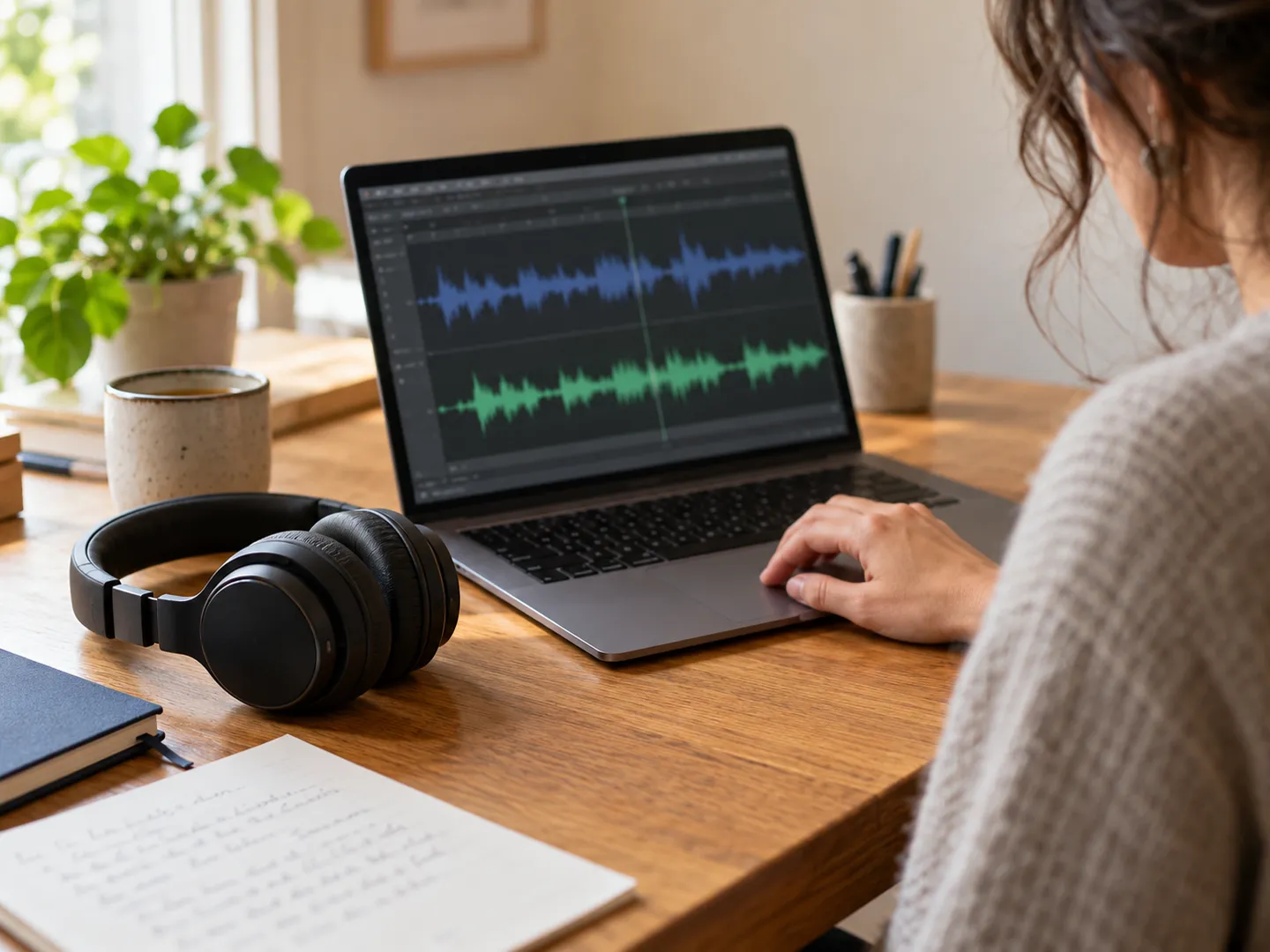
Preview individual lines as you review. When every line is ready, multi-speaker text to speech plays or downloads the conversation as one MP3 in the current script order. Replay and export reuse saved audio without another generation charge. Take that file into your video, lesson, or audio editor. Multi-speaker text to speech does not add music, overlapping voices, or precisely timed pauses. Finish those details after export if your production needs them.
Check multi-speaker text to speech limits and access
A multi-speaker text to speech project supports 2–4 speakers and up to 20 nonempty lines. The character limit, including tags, is 2,000 with an active subscription or 500 without one. Choose one script language per project and review your selected voices in that language. Multi-speaker text to speech requires sign-in and eligible credits for generation. Existing model access and character rates apply, with no additional dialogue plan or subscription-price change. Use the displayed quote to decide what to generate.
Multi-speaker text to speech questions
How do I start with multi-speaker text to speech?
Choose a language, name your speakers, and select their voices. In multi-speaker text to speech, write each speaking turn on a separate line and assign its speaker. Add delivery tags if needed, check the quote, and generate. Listen to each line before exporting. The localized example gives you a starting script to edit.
Does multi-speaker text to speech write my conversation?
Multi-speaker text to speech reads the words you provide. You supply the dialogue and decide who says each line. Draft directly in the editor or use a script you already have. Topic-to-script writing, document summarization, and automatic translation are separate tasks; this editor creates spoken audio from your text.
What does an edit cost in multi-speaker text to speech?
Multi-speaker text to speech charges only for new or changed generation inputs. Completed, unchanged lines keep their audio. Tags are part of the input; costs are rounded per line. Renaming speakers, reordering lines, replaying, and downloading the combined MP3 do not create additional generation charges. The updated quote appears before you start.
Can I try multi-speaker text to speech without a plan?
Listen to the prerecorded English example without spending credits. To create multi-speaker text to speech audio, sign in and use eligible credits. Without an active subscription, Basic has a 500-character project limit. Gift credits work with Basic; premium model access follows your active plan. Generation is not unlimited or automatically free.
What if multi-speaker text to speech fails on one line?
A failed, incomplete multi-speaker text to speech generation returns its credits under the existing policy. Finished lines remain available, so retry the lines still needing audio. Canceling a line after processing has started uses credits; unstarted lines are not charged. Review the message and revised quote before trying again.
Can multi-speaker text to speech use a private voice?
Eligible private voices appear when your account has access. Only use voices you have permission to use. For multi-speaker text to speech in another supported language, select the script language and write the dialogue in it. Changing the website language translates the controls and guidance, while your saved script stays as written.